Second post in the HPE Morpheus Enterprise track. E1.1 mapped the product; this one is the architecture that decides whether your deployment works or limps.
I’ve lost count of the HPE Morpheus Enterprise Software (Morpheus Enterprise) troubleshooting sessions that ended at the same place: something couldn’t reach the appliance URL on 443. Not a bug, not a licensing problem, not an integration defect — a name that didn’t resolve, a port that wasn’t open, or a websocket a load balancer quietly dropped.
That’s not a criticism of the product in past, It’s a consequence of the architecture, and if you understand the architecture, you pre-empt most of the pain. So this post follows the three moving parts: the appliance and its tiers, the agent and how it actually gets installed, and the Distributed Worker — the piece most people don’t know exists until they need it and that’s what you will need in any distributed Enterprise.
The appliance, briefly
Covered in E1.1, so just the shape: one Debian/RPM package, four tiers — Application, Transactional Database (MySQL), Non-Transactional Database (OpenSearch/Elasticsearch), and Message — each individually externalisable via /etc/morpheus/morpheus.rb, with reconfigure installing only what isn’t set to false. Default is all-in-one; documented topologies scale to full HA with the application tier alone on multiple hosts.
The thing to add here is the health surface. Administration > Health exposes far more than a green tick — processor count and process time, Morpheus versus system CPU and memory, and a deep MySQL panel (lifetime and aborted connections, max used connections, threads running, slow queries, buffer pool free, dirty page percent, insert/update/read rates, buffer hit rate), plus Elasticsearch/OpenSearch cluster status, node count, shard state including relocating and unassigned, and queue counts with busy and error queues.
Learn two of those indicators: unassigned shards and error queues. They go bad before users notice, and they explain most “Morpheus feels slow” reports. Appliance logs aggregate on the same page and export as the last 10,000 entries.
# The log I open first for anything provisioning-related
tail -f /var/log/morpheus/morpheus-ui/current

sudo morpheus-ctl status
sudo morpheus-ctl reconfigure
The agent: three steps, three failure modes
Here’s the piece worth memorising. Every agent installation method — regardless of platform — is doing the same thing: getting a script onto the target that calls back to the appliance over 443.
The documentation breaks it into three distinct steps, and they fail for different reasons:
- Delivery — an install method gets the script onto the target VM or host.
- Execution — the script runs, installing the agent and its dependencies.
- Connection — the agent starts and makes a websocket connection to the configured Appliance URL over port 443, authenticating with the target’s API key.
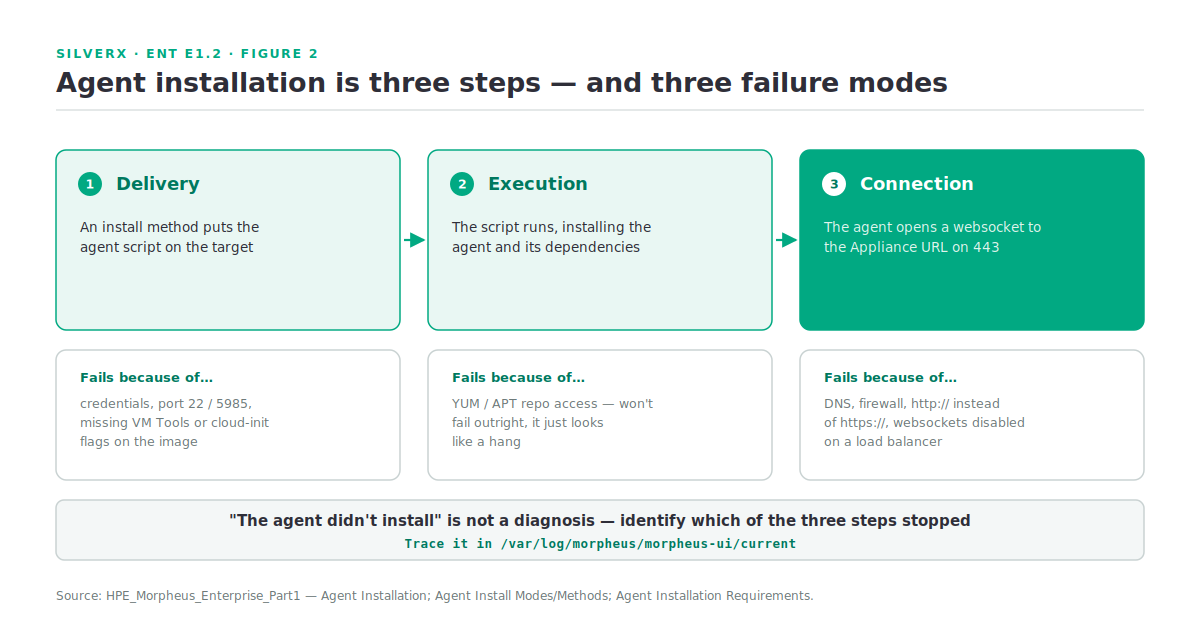
Separating those three is the whole diagnostic technique. A failure at step 1 is a credentials or access problem; at step 2, usually a package repository problem; at step 3, a name resolution, firewall, or websocket problem. “The agent didn’t install” is not a diagnosis.
Install methods
Five documented methods: SSH/WinRM, VM Tools, Cloud-Init & Cloudbase-Init, Windows Unattended, and Manual. Which one gets used is determined by the cloud’s AGENT INSTALL MODE setting, the platform/OS of the image or target, the virtual image configuration, and — for VMware clouds — the RPC Mode setting.
The two selectable modes:
- Cloud-Init / Unattend (when available) — the default. Uses Cloud-Init or Cloudbase-Init on images that have it, falls back to SSH or WinRM when not, and adds agent installation to Windows
unattend.xmlduring guest customisation or with sysprepped images. - SSH / WinRM / Guest Execution — attempts SSH, WinRM, or guest execution directly.
What each method needs, condensed from the requirements matrix:
| Method | Needs |
|---|---|
| All methods | Target resolves and reaches Appliance URL on 443; websockets enabled if there’s a load balancer |
| SSH | Port 22 open, SSH enabled, credentials stored on the image, sudo user set |
| WinRM | Port 5985 open, WinRM enabled, Administrator (SID 500) user |
| VMware Tools | VMware Tools installed and flagged on the virtual image |
| Cloud-Init | Cloud-Init installed and flagged on the image; global Cloud-Init user populated in Administration > Settings > Provisioning |
| Cloudbase-Init / Unattend | Windows Administrator password populated in Administration > Settings > Provisioning; sysprepped image flagged for Unattend |
Two details that cause disproportionate grief. The Appliance URL **must begin with https://, even when it’s an IP address** — plain http:// fails. And missing YUM/APT repository access won’t fail the install outright, but it will noticeably delay it, which reads as a hang.
The per-cloud override you should know about
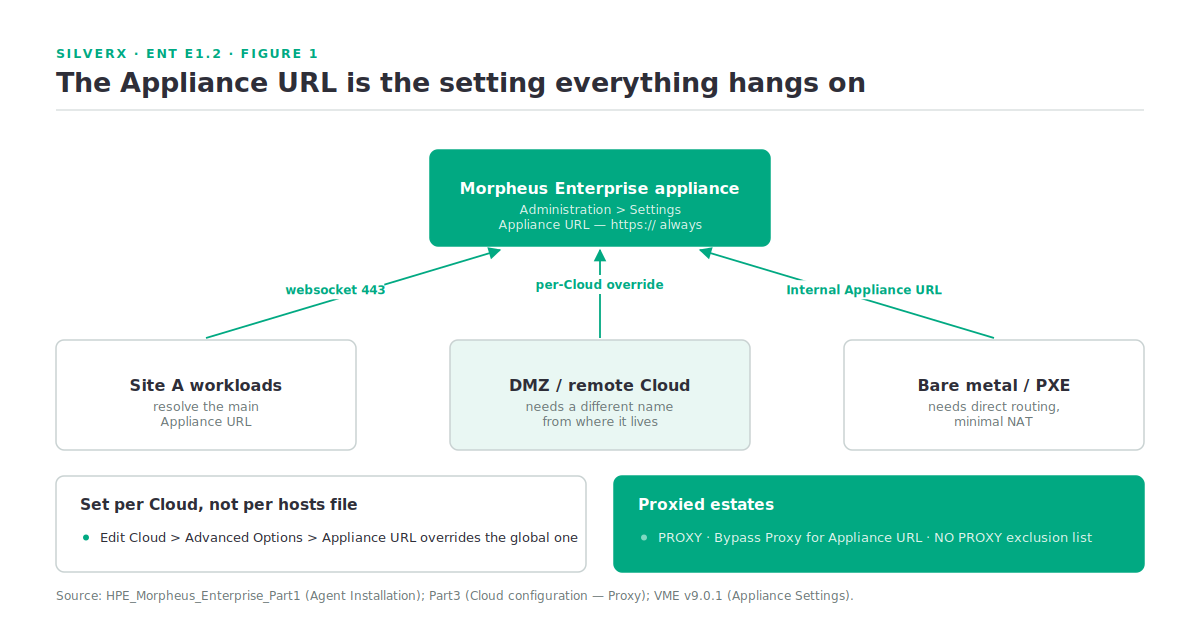
The main Appliance URL lives in Administration > Settings. But you can also set an Appliance URL per cloud, under Advanced Options in the cloud modal — and it overrides the main one for everything provisioned into that cloud.
This is the correct fix for the split-DNS and multi-site cases people usually solve with hosts-file hacks: workloads in a remote or DMZ cloud reach the appliance by the name that works from there. There’s also an Internal Appliance URL (PXE) for bare-metal provisioning, where the appliance needs direct routability with minimal NAT masquerading.
For proxied environments, the cloud config carries a PROXY setting for inbound instance-to-appliance traffic, a Bypass Proxy for Appliance URL toggle for agent traffic specifically, and a NO PROXY exclusion list.
Distributed Workers: the remote-hands tier
This is the component that turns Morpheus Enterprise from a single-site appliance into something that reaches into networks it can’t route to directly.
A Distributed Worker is a VM installed from an RPM or DEB package much like the appliance itself, configured through /etc/morpheus/morpheus-worker.rb. It’s the same package as the VDI Gateway worker — which key you put in the config decides whether it runs as a VDI gateway, a distributed worker, or both.
# /etc/morpheus/morpheus-worker.rb
worker_url            = 'https://gateway_worker_url'      # appliance must reach this on 443
worker['appliance_url'] = 'https://morpheus_appliance_url' # worker must reach this on 443
worker['apikey']      = 'VDI gateway key'                  # any value in worker-only mode
worker['worker_key']  = 'DISTRIBUTED WORKER KEY'           # from Administration > Integrations
worker['proxy_address'] = 'http://proxy.address:1234'
worker['no_proxy']    = 'vcenter.example.com,192.168.xx.xx'
sudo morpheus-worker-ctl reconfigure # installs worker, nginx and guacd
morpheus-worker-ctl tail worker
tail -f /var/log/morpheus-worker/worker/current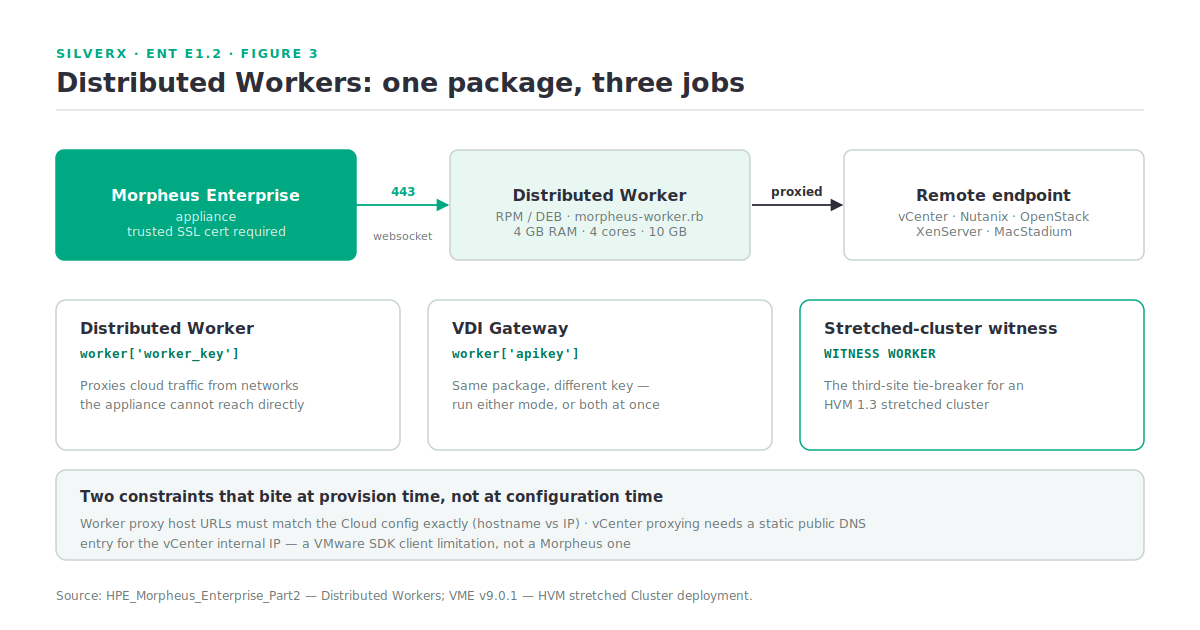
Once reconfigured, the worker opens a websocket to the appliance — same pattern as the agent. Sizing is modest: 4 GB RAM, 4 cores, and 10 GB storage recommended minimum, on Amazon Linux 2, CentOS 7/8, Debian 11/12, RHEL 7/8, SLES 12, or Ubuntu 18.04/20.04/22.04, with TCP 443 to the appliance and sudo for the install.
Supported cloud/zone types for worker proxying: vmware, vmwareCloudAws, nutanix, openstack, xenserver, macstadium. For VMware you must list the vCenter host addresses in the worker’s PROXY HOSTS field; Xen and PowerVC hosts too. Other supported types only need the worker selected in the cloud’s Connection Options.
And the same worker package is what serves as the witness for an HVM stretched cluster — the third-site tie-breaker covered in the VM Essentials track. One component, three jobs.
Gotchas and caveats
Workers require a trusted SSL certificate on the appliance. Not optional. Either put a publicly trusted certificate on the appliance or load balancer, or add the certificate and chain to the Distributed Worker’s Java keystore. Self-signed and unhandled: the worker won’t connect.
Proxy host URLs must match the cloud config exactly. If the cloud is configured with a hostname, the worker must use the hostname; if an IP, the worker uses the IP. Mixed forms fail in ways that don’t announce themselves.
vCenter through a worker needs a static public DNS entry for the vCenter appliance’s internal IP address. Without it, everything looks fine while configuring and breaks at provision time. The docs are explicit that this is a VMware SDK client limitation — it doesn’t natively support proxies — not a Morpheus one. Knowing that saves you raising the wrong support case.
Websockets through load balancers. Every agent install method requires websockets enabled when a load balancer sits in front of the appliance. This is the single most common cause of “the agent installed but the instance stays in provisioning.”
Brownfield targets need credentials on the record, not just the image. Converting discovered VMs to managed needs a sudo user (Linux) or Administrator SID 500 (Windows) set on the VM/host record.
Key takeaways
- Agent installation is always script delivery → execution → websocket on 443. Diagnose by step, not by outcome.
- The Appliance URL is the load-bearing setting in the whole platform.
https://always, resolvable from every provisioned workload, and overridable per cloud — use that override rather than fighting DNS. - Default agent mode is Cloud-Init/Unattend with SSH/WinRM fallback; WinRM needs 5985 and a real Administrator account.
- Distributed Workers proxy cloud traffic from networks the appliance can’t reach, run VDI gateway duty from the same package, and act as the HVM stretched-cluster witness.
- Workers need a trusted certificate on the appliance, and vCenter proxying needs a static public DNS entry — a VMware SDK constraint, not a Morpheus one.
- Watch unassigned shards and error queues in Health; they lead the “it feels slow” reports.
What’s next
Next in this track: E1.3 — Morpheus Enterprise vs VMware Aria/vRealize. An honest architectural comparison — where the two overlap, where the models genuinely differ, and what migrating from an Aria-shaped operating model actually costs.
Sources: HPE_Morpheus_Enterprise, HPE Morpheus VM Essentials Software Documentation v9.0.1 (HVM stretched Cluster deployment — witness worker)