Tenth post in the HPE OpsRamp track. O-9 covered OpsRamp’s structured AIOps layer — correlation, change detection, alert prediction — all of it model-driven but none of it conversational. This post covers the layer OpsRamp has put on top of that: Copilot, a chat interface for asking questions of and taking actions on the same alert, ticket, and dashboard data O-9 and earlier posts have been describing all track.
What Copilot actually is, before the marketing framing
It’s tempting to treat “Copilot” as one feature. OpsRamp’s own documentation doesn’t: it’s an early-access umbrella over at least three separately-labeled, separately-betaed pieces — a Documentation Assistant (Chatbot), a Dashboard Assistant (GenAI), and a broader conversational layer embedded inside Command Center (the alerts and tickets working surface) and the Integrations section. All of them sit under docs.opsramp.com’s support/early-access/copilot/ path, which is itself a signal: as of this writing, this is early-access material, not a fully GA’d, permission-hardened feature the way escalation policies (O-8) or correlation policies (O-9) are. The documentation’s own description is plain about scope: an “AI-powered assistant designed to help you search, analyze, and act on operational data in OpsRamp more effectively,” with “context-aware intelligence for monitoring, troubleshooting, and automation.”
A separate, non-early-access blog post — How OpsRamp’s Operations Copilot Will Bring Us One Step Closer to Autonomous IT Operations, from June 2024 — describes a larger, three-part architecture behind the marketing name “Operations Copilot”: OpsRamp’s own observability-specific AI models, a generative-AI conversational assistant, and an automation framework to actually execute what gets recommended. That post was explicit that broader availability was “targeted for later” in mid-2024. What’s live in the current docs is narrower and more concrete than that framing suggests — the chat panel described below, not an autonomous ops agent. Worth keeping the two separate: the blog is the vision; the user guide is what you can click on today.
The channels: what you can actually ask it
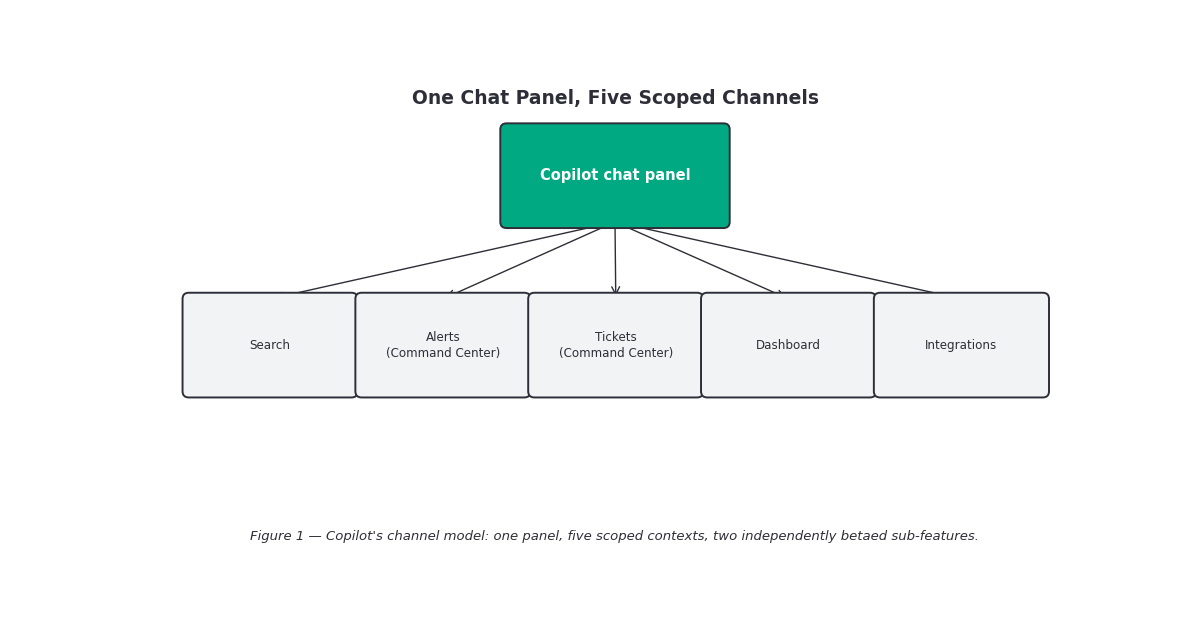
The Copilot User Guide organizes capability by channel — a dropdown inside the chat panel that scopes what Copilot is allowed to talk about and act on. Four channels are documented:
- Search — documentation lookups. Ask a question in plain language, get back relevant doc articles with direct links, functionally the same territory as the standalone Documentation Assistant described below.
- Command Center (Alerts) — the deepest channel. Documented capabilities include alert summarization and analysis, filtering by severity/type/time window, identifying which resources an alert impacts, correlation and root-cause analysis (drawing on the same inference model O-9 covered), metric analysis and trend queries over a specified period, and — notably — taking action: acknowledge, suppress, close, heal, and unsuppress an alert, from chat rather than the alert detail UI.
- Command Center (Tickets) — filtering tickets by status/priority/type, pulling detailed ticket information, querying assignment and ownership, and getting resolution suggestions.
- Dashboard — widget creation and modification, and full dashboard design from a natural-language description.
- Integrations — status and configuration queries against your connected integrations.
That alert-action list is the part worth pausing on. “Acknowledge, suppress, close, heal, unsuppress” is the same vocabulary O-8’s alert-lifecycle post documented as manual UI/API actions — Copilot doesn’t add new actions to the alert state machine, it adds a natural-language front end to the existing ones. Whether “heal” here means literally invoking First Response / Process Automation (O-11’s subject) or is Copilot’s own separate remediation path.
Two named sub-products: Dashboard Assistant and Documentation Assistant
Two of the four channels above are also documented as standalone, separately-versioned features, which suggests they shipped (or are shipping) ahead of the rest of Copilot:
Dashboard Assistant (GenAI) lives inside Dashboards 2.0. From the CREATE TILE flow, the AI option is the default selection; you describe what you want (“alerts for SNMP response timeouts,” “resource counts by availability state”) and it generates a preconfigured tile with an auto-populated query, which you can then edit before saving. The one concrete technical fact documented here matters: the tiles it generates are built in OpsQL, documented as “currently the only supported query language” for this feature — so Dashboard Assistant is translating natural language into the same structured query language a person would otherwise hand-write, not inventing some separate GenAI-native query format.
Documentation Assistant (Chatbot) is the smaller of the two — accessible from the Search icon’s “DOCS” option, it retrieves and summarizes matching documentation pages rather than acting on any operational data. It’s also the one place in this whole feature set where OpsRamp’s own docs put a disclaimer in writing: “AI-generated content may be inaccurate or incomplete” — validate before you act on what it tells you. That’s a useful baseline expectation to carry into the rest of Copilot, even where the other channels don’t repeat the warning explicitly.
How you actually open it, and its rough edges
Access is consistently described as contextual rather than global: you navigate to a supported feature area — Search, Command Center, Dashboards, Integrations — and click a Copilot icon to open the panel from there, rather than launching one Copilot from a single global entry point. Inside the panel, a channel dropdown lets you pick which of the four contexts you’re querying, and the UI keeps conversation breadcrumbs showing past queries within the current session.
Two specific rough edges are documented plainly enough to plan around rather than discover the hard way:
- Command Center alert queries require you to open an alert first. Copilot doesn’t answer “summarize my P1 alerts” cold from a blank panel inside this channel — it needs a specific alert open to establish context before it can summarize, correlate, or act on it. That’s a materially different interaction model from “ask anything, anytime.”
- Switching channels in full-screen mode starts a new conversation. If you’re deep in a Dashboard-channel conversation and switch to Tickets, you don’t carry context across — full-screen mode treats a channel switch as a fresh session, breadcrumbs and all.
The permission question, and what’s genuinely undocumented
The parent overview page states that early-access users need the View permission to use Copilot at all — a single, coarse gate, not a channel-by-channel permission matrix. That’s notably thinner than the OpsQ View/OpsQ Manage split O-8 and O-9 documented for escalation, correlation, and prediction policies. Whether the alert-action capabilities (acknowledge/suppress/close/heal) additionally require the same write-level permissions those actions need outside of Copilot, or whether the single View gate is genuinely sufficient to let Copilot take actions a viewer couldn’t take manually.
One more structural fact worth knowing exists, even without much detail behind it: OpsRamp documents a Copilot Usage Insights report (inside the platform’s Reporting Apps) that tracks per-agent utilization, LLM provider/model and token consumption, call volumes, top users by tokens or calls, and a success-rate percentage — filterable by client and time window, exportable to XLSX. Its existence confirms Copilot is metered and its effectiveness is meant to be measurable at an organizational level; the documentation doesn’t publish what “success rate” is actually computed from, which is itself worth asking your account team about before you cite that number to a stakeholder.
Gotchas and caveats
This is early-access documentation, not GA feature documentation. Everything in this post lives under docs.opsramp.com’s early-access path. Expect UI details, channel names, and capability lists to move before this reaches general availability — treat specifics here as a snapshot, not a stable interface contract.
“Heal” as a chat-driven alert action is undocumented in its mechanics. The action is named alongside acknowledge/suppress/close/unsuppress with no explanation of what it invokes underneath — don’t assume it’s equivalent to triggering a First Response policy or a Process Automation run (O-11’s subject) without confirming that in your own tenant.
Command Center’s alert channel needs an alert open first. If you’re expecting a general-purpose “ask about any alert” experience from a blank panel, the documented flow doesn’t support that in this channel — it’s alert-detail-scoped, not fleet-wide, until you’ve already navigated to something specific.
A channel switch in full-screen mode discards conversational context. Don’t build a workflow around carrying findings from a Dashboard-channel conversation into a Tickets-channel one in the same session — start the second conversation expecting to restate context.
The Documentation Assistant’s accuracy disclaimer should be read as a house-wide caveat, not a feature-specific one. It’s only written down under Documentation Assistant, but there’s no reason to assume the alert-summarization or ticket-analysis outputs from other channels carry a materially different confidence bar — validate before you act, especially on anything Copilot suggests as a root cause or a remediation.
The single “View permission” gate is thinner than you’d expect for an action-taking tool. If Copilot can acknowledge and suppress alerts on a View-level permission alone, that’s a meaningfully different security posture than the OpsQ Manage gate O-8/O-9 required for the same actions taken through policies — confirm this against your own tenant rather than assuming parity.
Key takeaways
- Copilot is an umbrella over several separately-betaed features, not one monolithic product: a Documentation Assistant (doc search/summarization), a Dashboard Assistant (natural-language tile generation, OpsQL under the hood), and a broader conversational layer across Command Center (Alerts, Tickets) and Integrations.
- Command Center’s alert channel can take real actions — acknowledge, suppress, close, heal, unsuppress — using the same alert-lifecycle vocabulary O-8 documented, effectively giving those manual UI actions a natural-language front end.
- Dashboard Assistant generates OpsQL, the same structured query language a person would otherwise hand-write — it’s a translation layer, not a new query paradigm.
- Two documented interaction constraints shape real usage: Command Center’s alert channel requires an alert already open, and switching channels in full-screen mode starts a fresh conversation with no carried context.
- Access is gated by a single View permission in early access — notably coarser than the OpsQ View/Manage split governing escalation, correlation, and prediction policies elsewhere in the platform.
- A Copilot Usage Insights report exists, tracking tokens, LLM calls, and a success-rate metric per user/agent — confirming Copilot is metered, though the success-rate methodology isn’t published.
- Several specifics are : what the “heal” alert action actually invokes, and whether alert-action capabilities require write-level permissions beyond the documented View gate or HPE system enegineers can help.
What’s next
Next in this track: O-11 — Automation and Incident Remediation. This post covered the conversational front end for querying and acting on alert, ticket, and dashboard data. O-11 goes underneath the chat panel to the actual execution layer — Process Automation, Scripts, and First Response — the mechanics of what runs when an alert (or a person, or Copilot) triggers a remediation. O-12, after that, narrows into Patch Automation specifically.
Sources: OpsRamp Documentation · Copilot Overview · Copilot – User Guide · Dashboard Assistant (GenAI) – Beta · Documentation Assistant (Chatbot) – Beta · Copilot Usage Insights · How OpsRamp’s Operations Copilot Will Bring Us One Step Closer to Autonomous IT Operations.