Fourth post in the VM Essentials Install & Cluster module. A2.3 walked the Add Cluster wizard and landed a running cluster with OVS bridges and Libvirt Networks already in place — “ready for VM provisioning,” the documentation says, and mostly leaves it there. This post is what’s actually inside that sentence, and what to do once the wizard’s three-interface, one-VLAN-field model isn’t enough.
What the wizard already built, and why that’s not the whole story
Three prepared hosts, one Add Cluster submission, and — per A2.3 — a cluster that comes up with OVS bridges and Libvirt Networks created for the interfaces you named (MANAGEMENT NET, STORAGE NET, COMPUTE NET) and the VLANs you typed into COMPUTE VLANS, immediately selectable as networks in the provisioning wizard. For a lot of clusters, that’s genuinely as far as networking configuration needs to go on day one.
It stops being enough the moment you need a second VLAN range added later, a network isolated from the rest of the fleet, an overlay for east-west traffic that doesn’t touch physical switches, or a new physical NIC brought into service after the cluster already exists. None of that is covered by re-running the wizard — Add Cluster only runs once, at formation. Everything past that point happens on the Cluster detail page’s Network tab, and it works on a different, more granular object model than the wizard’s three text fields.
Routers and Networks: two subtabs, one dependency order
The Network tab has two subtabs — Routers and Networks — and the documentation’s own framing is worth repeating exactly because it’s the one thing that trips people up first: from a KVM perspective, OVS Bridges and Libvirt Networks (without any port groups) are created on the Routers subtab; Port Group entries are added to existing Libvirt Networks on the Networks subtab. Routers first, then Networks — not because the UI enforces it strictly, but because a Network object needs a Router (an OVS bridge) to attach to.
Adding a router: Routers subtab → + ADD → OVS Bridge Domain. The modal asks for a Group (Shared, or a specific Group), a Name, and a HOST BRIDGE — either an existing OVS bridge, or Create New, which asks for a bridge name and a network interface to back it. Two outcomes, and they matter:
- Pick an existing OVS bridge → a new Libvirt Network is created, no new bridge.
- Pick Create New → a new OVS bridge and a new Libvirt Network are both created, and this requires a free physical interface or bond that isn’t already claimed.
Adding a network: Networks subtab → + ADD → OVS Port Group. This is where CIDR, GATEWAY, DNS PRIMARY/SECONDARY, the ROUTER selection (pointing back at a Router you just created), VLAN ID, and an IP Pool all get set — this is the object that actually becomes a selectable network in the provisioning wizard.
Everything the Add Cluster wizard built for you at formation lives in this same model — you just didn’t have to click through it, because COMPUTE VLANS did the Networks-subtab work in one field and the three named interfaces did the Routers-subtab work implicitly.
The five HVM network types
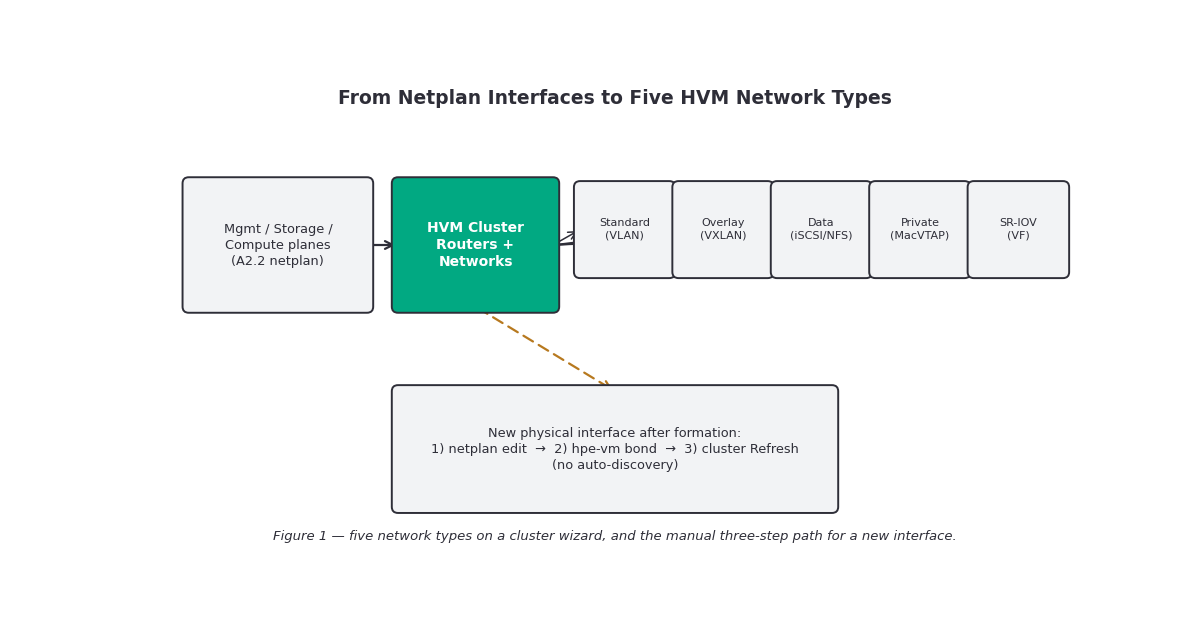
The HVM Network Plugin — pre-installed, auto-registered at cluster creation, and not removable — is what actually executes every create/modify/delete you do on this tab, on every host, and it’s what A1.2 introduced at the architecture level. This post is the use of it: which type to pick and what each one is actually doing on the wire.
| Type | Backing mechanism | What it’s for | Notable constraint |
|---|---|---|---|
| Standard | OVS port group on a Bridge Domain; Access / Hybrid / Trunk-only VLAN mode | VMs on physical/VLAN-segmented networks — the everyday case | CIDR and name can’t be changed after creation |
| Overlay: More of this in SDN | VXLAN tunnel, dedicated OVS bridge per overlay (not the shared Bridge Domain) | East-west VM traffic across hosts without touching upstream VLAN config | Needs a reachable-IP interface identical across every host; VNI 1–16,777,215 |
| Data | Linux VLAN sub-interface mapped to a libvirt network | High-throughput in-guest storage traffic (iSCSI, NFS) | MTU (1500/9000) applies only to stopped VMs — the same rule A2.2 flagged |
| Private | MacVTAP interface on a VLAN sub-interface | Isolated VM-to-physical connectivity, minimal overhead | Interface must be a bond or standalone NIC — not a bond member |
| SR-IOV | Virtual Function (VF) passthrough from a Physical Function | Near-native network I/O, bypassing the host stack | Live migration is not supported for VMs on SR-IOV networks; SR-IOV must be enabled in host BIOS/UEFI first |
Standard and Overlay are the two you’ll reach for most: Standard for anything that needs to actually reach a physical VLAN outside the cluster, Overlay for tenant or workload isolation that never needs to touch a physical switch config at all. Data, Private, and SR-IOV are all narrower-purpose — a storage path, an isolated back-channel, or a latency-sensitive workload, respectively — and each comes with its own host-side prerequisite (a free interface, BIOS SR-IOV support, AppArmor config for VFIO) that’s worth confirming before you open the modal rather than after it fails partway through.
Adding a new interface after the cluster already exists
This is the gap the wizard leaves open, and the documentation is direct about it: on initial cluster provisioning, OVS bridges and Libvirt Networks are created and immediately ready for VM provisioning — but when adding new network interfaces, you create the networking objects in the UI manually. Specifically: the Manager does not discover new interfaces that aren’t in netplan.
The path is three steps, in order, across every host:
- Add the interface to
01-base.ymlin netplan and apply it — the samenetplan try-first discipline from A2.2, because you’re doing this on live cluster hosts, not fresh installs. - Create the bond in the
hpe-vmtool — the same tool referenced in the installation documentation for initial host setup, used here again for a post-formation interface. - Refresh the HVM Cluster through the UI — this is what makes the new interface selectable as a NETWORK INTERFACE / HOST BRIDGE option when you go add a Router.
Skip step 3 and the interface exists on the host but is invisible to the Routers modal. Skip step 1 or 2 and step 3 has nothing new to find. The order matters because each step is a precondition for the next, not an independent task you can do in any sequence.
VLAN modes, trunk changes, and the ARP flux gotcha
Standard Networks run in one of three VLAN modes — Access (untagged, single VLAN), Hybrid (untagged native plus tagged trunk VLANs), or Trunk-only (all tagged, no native VLAN) — and a single VM NIC can carry multiple VLANs in Hybrid or Trunk-only mode without needing a dedicated NIC per VLAN. After creation, VLAN Trunks and Trunk Only are the only two fields you can still modify; VLAN ID, Resource Pool, and Router are fixed for the life of the network. Adding a trunk VLAN provisions it on every host; removing one removes it too, unless another network on the same cluster and OVS bridge still references it.
The gotcha worth flagging on its own: the system enforces VLAN isolation at Layer 2, but Linux guest VMs may still answer ARP requests across VLANs anyway. This isn’t a fault in OVS or the physical network — it’s the Linux kernel’s default weak-host model, which responds to ARP for any locally-assigned IP regardless of which interface asked. If you’re seeing traffic that looks like it’s crossing VLAN boundaries it shouldn’t, the fix lives inside the guest, not the network config:
sysctl -w net.ipv4.conf.all.arp_ignore=1
sysctl -w net.ipv4.conf.all.arp_announce=2
Gotchas and caveats
Interfaces used for new Router bridges must be free and identical across every host. SR-IOV, Overlay, and Data networks all carry the same requirement — the plugin does not reconcile mismatched interface names across nodes for you.
Modifying a Standard Network is narrower than you’d expect. VLAN Trunks and Trunk Only, and nothing else — CIDR, name, VLAN ID, Resource Pool, and Router are all locked after creation. Get the CIDR wrong and the fix is delete-and-recreate, not edit.
SR-IOV drops live migration entirely, and VF tracking can get inconsistent after clone, backup, or restore — the documentation specifically flags restarting libvirtd as the recovery step when that happens.
“No new interfaces discovered automatically” applies to every network type that needs a fresh host interface, not just Standard networks off a new Router — Data, Private, and SR-IOV networks hit the same wall if the interface isn’t already in netplan and refreshed into the cluster.
Exact current-UI field names and modal layout for the Routers/Networks subtabs should be checked against your running version — this is a UI-heavy area of the product and terminology (e.g., “OVS Port Group” vs. “Network”) is the kind of thing that shifts between releases.
Key takeaways
- Cluster formation only builds Routers/Networks for the interfaces and VLANs given to the Add Cluster wizard — everything past that is manual, on the Cluster detail page’s Network tab.
- Routers subtab creates OVS Bridge Domains (and their Libvirt Networks); Networks subtab adds Port Groups to existing Libvirt Networks — router objects have to exist first.
- Five network types cover different needs: Standard (physical/VLAN), Overlay (VXLAN, east-west), Data (VLAN interface, storage), Private (MacVTAP, isolation), SR-IOV (VF passthrough, near-native I/O, no live migration).
- New physical interfaces are never auto-discovered — netplan edit,
hpe-vmbond creation, then a manual cluster refresh, in that order, before the interface is selectable anywhere in the UI. - VLAN isolation is enforced at Layer 2, but guest OS ARP flux can still look like a leak — the fix is
arp_ignore/arp_announcesysctls inside the VM, not a network reconfiguration. - Only VLAN Trunks and Trunk Only are editable on a Standard Network after creation; plan the rest correctly up front.
What’s next
Next in this track: A2.5 — Host Lifecycle. Adding and removing hosts from a running cluster, maintenance mode, host-level health signals, and what actually happens to running workloads when a node needs to come out of service.
Sources: HPE Morpheus VM Essentials Software Documentation v9.0.1