Third post in the VM Essentials Install & Cluster module. A2.2 got three hosts ready — OS, netplan, storage, pre-flight all clean. This post is the moment those hosts stop being three hosts and become one HVM cluster.
The wizard is small. What it triggers isn’t.
Open Infrastructure > Clusters, click + ADD CLUSTER, select HVM, and the model that appears asks for surprisingly little: a handful of SSH credentials, a disk path, three interface names, a couple of dropdowns. It’s easy to read that as “cluster creation is simple” and click through it without much thought.
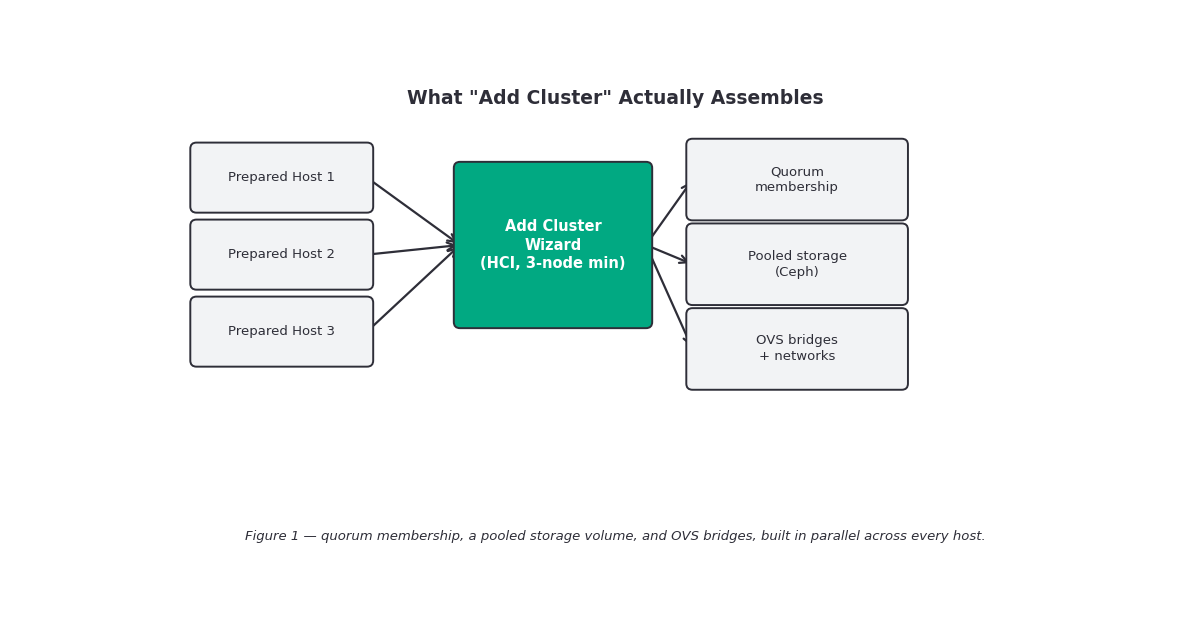
What actually happens behind is the point of this post. HPE Morpheus VM Essentials Software (VM Essentials, VME) takes the answers you give it and runs scripts across every host in parallel — installing KVM, installing Open vSwitch, standing up Corosync-based quorum membership, and pooling whatever data disks you handed it into shared storage. None of that is visible in the wizard itself. It shows up afterward, on the Cluster detail page’s History tab, as a sequence of per-host jobs you can watch complete (or fail) one at a time.
If A2.2’s pre-flight came back clean on every node, this part really is close to anticlimactic. If it didn’t, this is where you find out.
HCI or non-HCI: the decision the whole wizard hangs on
The very first choice in the modal is the LAYOUT: hyperconverged infrastructure (HCI) or non-HCI.
HCI pools the raw data disks you present from each host into a single Ceph-backed storage volume shared by the whole cluster — no external storage array required. It requires a three-node minimum. This is the layout used throughout the rest of this post, and it’s the one the documentation’s own worked example builds – But keep in mind, HPE doesnt recommend Ceph for production workload, but works wells for labs.
Non-HCI skips local Ceph storage entirely. Hosts stay compute-only and the cluster instead uses external storage — NFS or an iSCSI/Fibre-Channel target presented as a GFS2 datastore, covered properly in the A3 storage module. Non-HCI clusters can run with fewer nodes; this is the path for the single-host and single-nested-VM lab configurations covered back in A1.8.
That three-node figure is worth sitting with. It isn’t a recommendation — it’s the floor Ceph needs to form quorum-backed storage at all. A two-host HCI attempt isn’t a smaller cluster; it’s not a cluster the wizard will let you build.
| HCI layout | Non-HCI layout | |
|---|---|---|
| Minimum nodes | 3 | Fewer (single host/VM possible) |
| Storage | Local disks pooled into Ceph | External — NFS, iSCSI, or FC via GFS2 |
| Data disk requirement | Raw, unRAIDed, per host | Not required on hosts |
| Live migration / auto-failover | Yes | Depends on datastore config |
| Typical use | Test workloads, lab (3+ nested VMs) | Production Grade, Compute-only hosts, single-host labs can work. |
Walking the fields, in order
SSH HOST, SSH PORT, SSH USERNAME / PASSWORD or SSH KEY. The wizard gives you configuration space for three hosts by default (the HCI minimum) and a + to add more. SSH HOST is a display label in VME, not a real hostname requirement — what matters is the IP address, the SSH port (22 by default, changeable), and a regular sudo-capable user, authenticated by key or password. This matches what A2.2‘s pre-flight already confirmed on every node.
DATA DEVICE. The raw disk path from lsblk — the documentation’s own example uses /dev/sdb. Multiple disks per host go in as a comma-separated list (/dev/sda,/dev/sdb,/dev/sdc). Every disk from every node gets pooled into one large volume presented to the cluster as a whole — this is the HCI storage step, and it’s why A2.2 was so insistent about raw, unRAIDed devices, you add datastore later in non-hci VME setup.
MANAGEMENT NET INTERFACE, STORAGE NET INTERFACE, COMPUTE NET INTERFACE. The three interface names A2.2 built in netplan get named here — eth0, eth1, eth2 in the documented example, though your actual names may differ (ip a confirms them). Separate interfaces aren’t strictly enforced by the wizard, but this is the field where that decision becomes permanent for the cluster.
COMPUTE VLANS. A single VLAN ID or a range (1, or 22-25). This is the field that turns your compute interface’s trunked VLANs into selectable Open vSwitch port groups at provisioning time — the same field A2.2 flagged as needing your VLAN allocation decided before you type it in.
CPU TYPE and CPU MODEL. Only x86_64 is currently supported for CPU TYPE. CPU MODEL surfaces the full libvirt model database; if you don’t have a specific reason to pin one, host-passthrough is the default and the documented default recommendation.
DYNAMIC PLACEMENT. Enabled, VME automatically rebalances VMs across cluster hosts based on resource utilization (this is the DRS-equivalent behavior). Disabled, VMs only move when explicitly pinned or when failing over — they don’t return to a “preferred” host automatically.
POWER POLICY. Balanced (default) trades off performance and efficiency; Performance reduces network latency with settings similar to the tuned network-latency profile and switches CPUs into performance mode. One catch worth flagging up front: Power Policy settings require HVM Host Agent 3.0.0+, take effect on the next sync cycle rather than immediately, and persist across a host reboot. If a host’s agent predates that version, upgrade it from the Host detail page’s Actions menu (Upgrade Agent, or download an agent script — scripts are per-host, not reusable across the cluster).
Where the cluster has to live
HVM clusters aren’t standalone objects in the data model — they live inside a Private Cloud-type Cloud (Infrastructure > Clouds), the same requirement A1.2 and A2.2 both flagged. Use an existing one or create it before opening the Add Cluster modal; the Cloud picker in the wizard expects one to already exist rather than letting you create it inline.
What happens after you click submit
Save the modal and the wizard hands off to the per-host build. Drill into the Cluster detail page and open the History tab — this is where the real work is visible: HPE Morpheus VM Essentials running scripts to install KVM, install Open vSwitch, and prepare each node for cluster membership. The documentation describes this as generally quick; in practice it runs at the speed of package installation across however many hosts you gave it, which is also why A2.2’s outbound-internet and repository-reachability checks matter here specifically — this is the step where a host without working repos fails, often confusingly.
On successful completion, the cluster comes up with OVS bridges and Libvirt Networks already created and immediately ready for VM provisioning — no manual network object creation needed for the interfaces defined at cluster-creation time. (New interfaces added later are a different story, covered in A2.4.) The HVM Instance Type becomes selectable in the provisioning wizard, with your new cluster available as a RESOURCE POOL, and the VLANs configured during cluster creation appear as selectable networks.
One thing that is not active yet: quorum for shared storage. Corosync-based membership exists from the moment the cluster forms, but the quorum service specifically activates only once a shared LUN (an HPE Clustered Datastore, formerly called a GFS2 datastore) is added — it isn’t needed before that point. If you’re building HCI-only for now and adding shared block storage later, don’t be surprised that corosync-quorumtool and friends look different before and after that step; that’s covered fully in the A3 storage module.
Gotchas and caveats
Three nodes is a hard floor for HCI, not a suggestion, even non HCI must have 3 nodes for production If you’re testing with fewer, you’re building non-HCI by necessity, not by choice.
The SSH HOST field will not save you from a bad DNS entry. It’s cosmetic. The IP address, port, and credentials are what the wizard actually uses — don’t spend time trying to make the display name “correct.”
Mixed 22.04/24.04 nodes get the older cluster layout (1.1) cluster-wide, not a per-host mix, as A2.2 already flagged. Resolve OS version drift before you reach this wizard, not after a failed build.
Power Policy silently no-ops on old agents. If Performance mode doesn’t seem to be taking effect, check the HVM Host Agent version before assuming the setting is broken.
The History tab is the actual build log. If the wizard “completes” too fast to be believable, or a host seems stuck, that tab — not the modal — is where the real per-host status lives.
Cluster-creation specifics on quorum activation timing are as documented.
Key takeaways
- HCI layout requires a three-node minimum; non-HCI supports fewer and skips local Ceph in favor of external storage.
- DATA DEVICE disks from every host pool into one shared volume; COMPUTE VLANS becomes selectable OVS port groups at provisioning time.
- host-passthrough is the default, recommended CPU MODEL; only x86_64 CPU TYPE is currently supported.
- Power Policy needs HVM Host Agent 3.0.0+ and only applies after the next sync cycle — check agent version before troubleshooting it.
- The build runs in parallel across all hosts, installing KVM and OVS; watch the History tab, not the modal, to see real progress.
- Quorum for shared storage activates only when a shared LUN is added — not at cluster creation itself.
- HVM clusters must live inside a Private Cloud-type Cloud, created before you open the wizard.
What’s next
Next in this track: A2.4 — Cluster Networking. What the initial OVS bridges and Libvirt Networks the wizard creates actually look like, how to add new network interfaces after the fact (a manual netplan-plus-hpe-vm-plus-refresh process the wizard won’t do for you), and the Routers/Networks split on the Cluster detail page’s Network tab.
Sources: HPE Morpheus VM Essentials Software Documentation v9.0.1
Pingback: Cluster Networking – silverX.org