First post in the Multi-Cloud & Provisioning module. E1.6 connected one vCenter. This is what changes when there are nine.
One vCenter is a tutorial. Nine is an architecture.
The add-cloud wizard doesn’t get harder with scale. What gets harder is everything around it: which Group each cloud belongs to, which tenant sees it, whether your images exist in the right places, whether a service plan means the same thing in two datacentres, and how many discovered resources you’ve just committed to managing.
HPE Morpheus Enterprise Software (Morpheus Enterprise) handles multiple vCenters well — the documentation notes plainly that an appliance “may have many vCenter Clouds tied to any number of vCenter appliances.” The question is whether your model handles it. This post is the design work.
Scoping: one cloud per what?
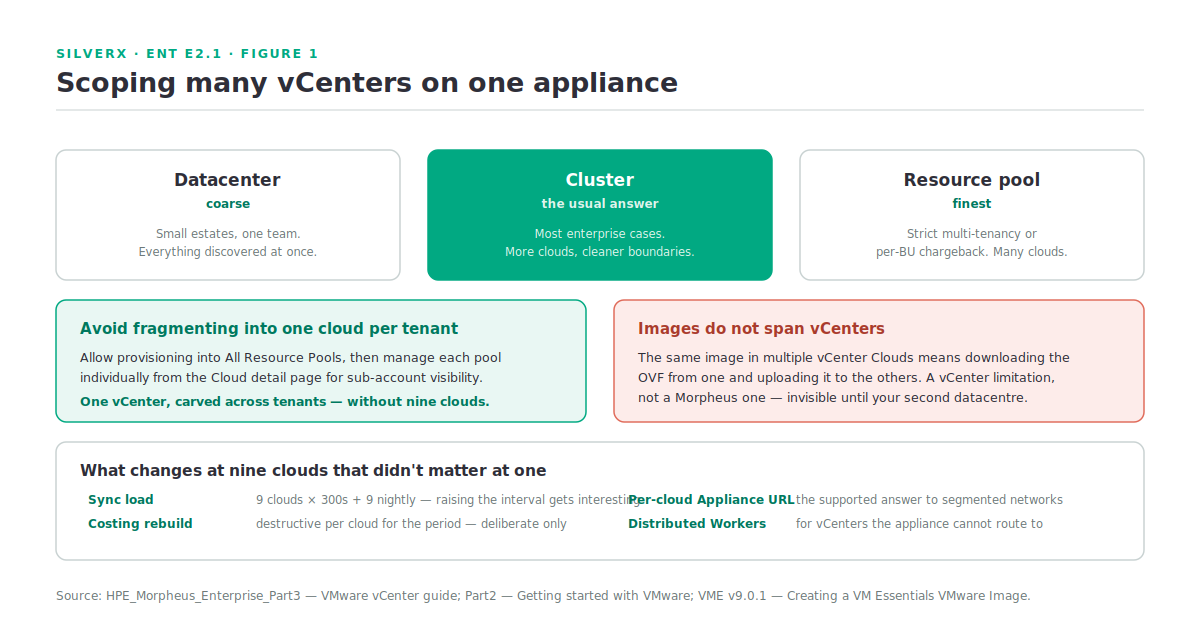
A vCenter cloud integration is scoped to a datacenter, optionally narrowed to a cluster or a single resource pool. That gives you three grain sizes, and the choice compounds at scale.
| Grain | When it fits | What it costs |
|---|---|---|
| Datacenter | Small estates, one team | Everything discovered at once; coarse tenant assignment |
| Cluster | Most enterprise cases | More clouds to manage; cleaner boundaries |
| Resource pool | Strict multi-tenancy or chargeback per business unit | Many clouds; the finest control |
The pattern I’d start from: one cloud per cluster, in one Group per routable network domain (E1.5). The documentation’s own guidance is that groups are normally organised so one cloud exists in one group, unless networks permit internal routing between them — in which case combining supports bursting and hybrid patterns.
There’s a second lever that avoids over-fragmenting: Resource Pool scoping within a single cloud. Allow provisioning into All Resource Pools, and those pools become individually manageable from the Cloud detail page for sub-account visibility. That’s how you carve one vCenter across tenants without creating one cloud per tenant — usually the better answer for a service provider.
The image constraint nobody expects
This is the one that catches every multi-vCenter build, and it’s worth knowing before you design your image library.
A Morpheus appliance may have many vCenter clouds across many vCenter appliances. But if the same image needs to be available to multiple vCenter clouds, you must download the OVF from one vCenter and upload it into the others. You can then make multiple Node Types from the images so it’s available to all the vCenter clouds that need it.
The documentation is explicit that this is a vCenter limitation, not a Morpheus one — but it’s invisible until you provision into your second datacentre and the image isn’t there.
Two consequences for the design:
Your golden image process is per-vCenter. Building a new template means distributing it, not publishing it once. Automate the distribution or it will drift, and drifted templates across datacentres are how “it works in DC1” starts.
Set the Image Target folder deliberately in each cloud. From the Cloud detail page’s Resources tab, a folder can be set as Default (pre-selected when provisioning) and/or Image Target (where Morpheus looks to onboard VMware images). With one vCenter that’s a nicety; with nine it’s the difference between a predictable library and a scavenger hunt.
Service plans across clouds
Service Plans determine the compute resources for an Instance — cores, memory, storage — and from A1.3 they’re used in three places: at provisioning, when converting discovered instances to managed, and on reconfigure.
At scale, two things matter.
Plans sync in per cloud, and seeded plans exist too. Morpheus seeds a set of service plans for supported cloud types out of the box, and more may sync in when you add clouds. Left alone, you end up with a plan list that’s an accident of which clouds you added in which order.
Availability is governed by Group Access permissions on the plan — which Groups it’s available in for provisioning and reconfigure. That’s your lever: define a deliberate set of plans, scope them to the Groups where they’re valid, and stop the seeded ones cluttering the catalogue where they don’t apply.
The brownfield case is where sloppiness costs most. When you convert a discovered VM to managed, you pick the plan that best fits it as currently configured. Onboard several hundred VMs against a vague plan list and every subsequent cost report inherits that error — and at multi-vCenter scale, “several hundred” is the normal case.
Inventory: decide what arrives active
From E1.6, Inventory Options let you set discovered resource types to arrive inactive rather than active. By default every discoverable type for the cloud arrives active: Service Plans, Resource Pools, Networks, Security Groups, Datastores, Folders.
At one cloud that’s fine. At nine it’s the difference between a curated platform and a wall of objects. Bring things in inactive, activate deliberately, and your provisioning dropdowns stay meaningful.
The same applies to resources after the fact: on the Cloud detail page’s Resources tab, editing a resource pool and unmarking ACTIVE greys it out and stops it being provisionable. That’s how you stop Morpheus offering a pool that belongs to another team.
And remember the licence. Per A1.5, entitlement is socket-based, but the lab licence counts managed and discovered workloads against its 25. On a properly licensed appliance inventory is free; on anything else, adding your fourth vCenter with inventory enabled is how you discover the ceiling.
Operational load at scale
Three things that are invisible at one cloud and obvious at nine:
Cloud sync is per cloud, every 300 seconds by default. Nine clouds is nine syncs on that cadence, plus nine nightly syncs. The documentation warns that appliances managing a very large number of clouds may be adversely affected by lowering the interval — at scale, raising it is the more interesting option.
Costing rebuild is destructive per cloud. Forcing a costing rebuild deletes all costing data for that cloud for the period and reconstructs it from the API. Fine deliberately, painful by accident.
Per-cloud Appliance URLs are how you survive segmented networks. Nine clouds across three network zones probably means workloads that can’t all resolve one name. The per-cloud override from E1.2 is the supported answer.
And Distributed Workers are how you reach vCenters you can’t route to. From E1.2: vmware is a supported cloud type for worker proxying, the worker’s PROXY HOSTS must list the vCenter addresses, the URLs must match the cloud config exactly (hostname vs IP), and vCenter proxying needs a static public DNS entry for the vCenter’s internal IP — a VMware SDK client limitation.
Gotchas and caveats
Images don’t span vCenters. The constraint worth repeating.
Empty dropdowns at cloud creation = URL resolvable, 443 to vCenter, credentials with Datacenter-level access. Same three, every time.
Hypervisor console needs 443 to the ESXi hosts, not just vCenter — nine clouds means nine sets of ESXi hosts in that firewall rule.
RPC mode is per cloud. A cloud whose networks the appliance can’t reach on 22/5985 needs VMware Tools Guest Execution even if the others use SSH/WinRM.
Deleting a cloud requires emptying it first — every Instance, managed host and VM.
Minimum-privilege vCenter accounts are per vCenter. If you’re building the least-privilege role from the documented privilege list, that’s nine roles to build and maintain. Budget for it or use admin accounts deliberately, but decide rather than drift.
Key takeaways
- Start from one cloud per cluster, one Group per routable network domain — then use resource-pool scoping rather than fragmenting into one cloud per tenant.
- Images do not span vCenters. Download the OVF and upload it to each — a vCenter limitation with a real distribution cost.
- Set the Image Target and Default folders deliberately in every cloud.
- Curate Service Plans and scope them by Group Access, or the seeded and synced ones become the catalogue.
- Bring discovered resources in inactive and activate deliberately.
- At scale, watch sync cadence, costing rebuilds, per-cloud Appliance URLs and Distributed Workers for unroutable vCenters.
What’s next
Next in this track: E2.2 — Adding Public Clouds. AWS, Azure and Google Cloud into the same data model — what the integrations actually sync, how costing works when the provider is the source of truth, and where the “one platform, any cloud” promise holds up against the detail.
Pingback: Adding Public Clouds: AWS, Azure and GCP – silverX.org